
Cinema HQ Guide
Cinema HQ Subtitles: Pick, Size and Sync Them
Set up subtitles in Cinema HQ: pick a language, adjust size, and fix subtitles that drift out of sync.
 By Maria Reyes · Streaming App Reviewer
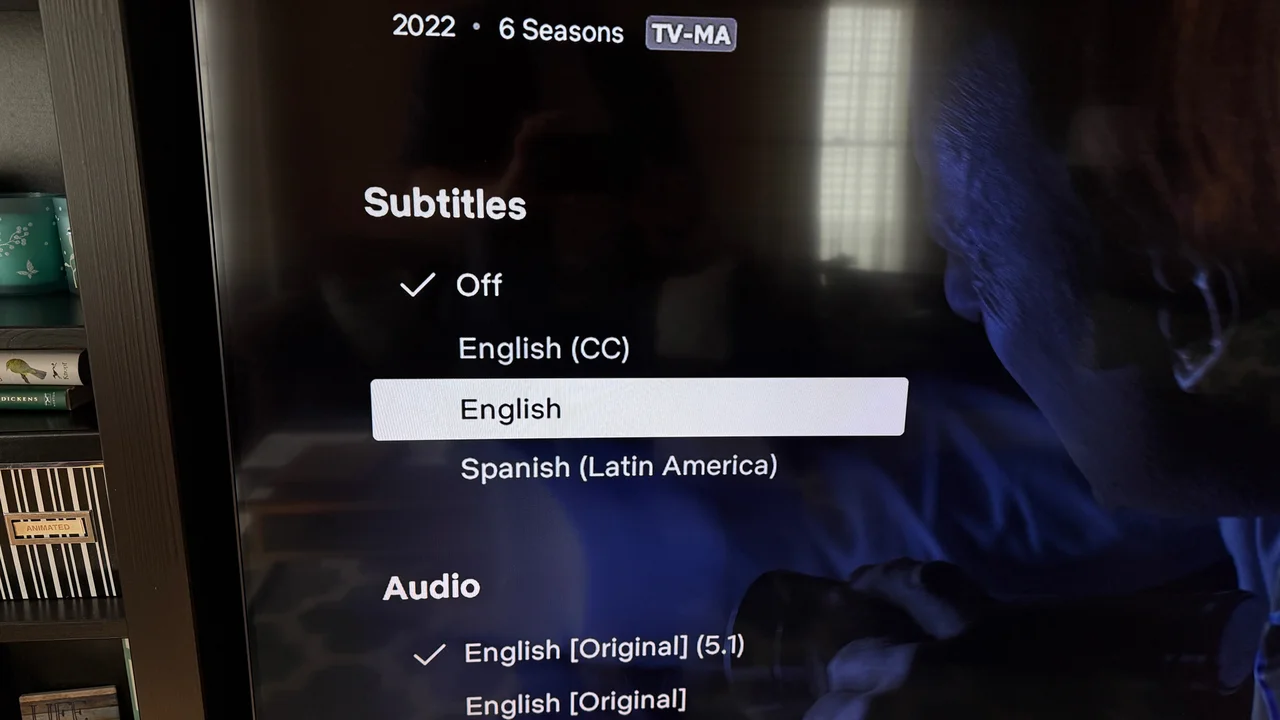
Pick subtitles per title
If you are new here, start from the the Cinema HQ app homepage, then follow this guide. Subtitles in Cinema HQ depend on the source, so availability varies by title. Open a title, start playback, and open the subtitle control in the player. If your language is missing, try another source for the same title before assuming the app lacks subtitles.
Size and style
In the player subtitle settings, adjust size for your screen: larger on a TV viewed from a sofa, smaller on a phone held close. Some players also allow colour and background changes, which help on bright scenes. Set a default once, and most titles will follow it. The external player choice guide covers the next step in detail.
Fix subtitles that drift
If subtitles slowly drift out of sync, use the subtitle delay or sync control in the player to nudge them earlier or later. A small nudge, a fraction of a second at a time, fixes most drift. If drift grows through a title, the subtitle file and the video may be different cuts, and another source is the fix. For a related setup, see live TV setup.
Quick Answers
Why do some titles have no subtitles?
Subtitle availability depends on the source. Another source for the same title may carry them.
Can I change subtitle size in Cinema HQ?
Yes, in the player subtitle settings, with size and often colour and background options.
What if subtitles are out of sync?
Use the subtitle delay control for small drift. Growing drift usually means a mismatched subtitle file, so try another source.