
Cinema HQ Guide
Cinema HQ External Players: VLC, MX Player and More
Send Cinema HQ playback to VLC, MX Player or another player, and know when an external player is the fix.
 By Maria Reyes · Streaming App Reviewer
Choose a default player
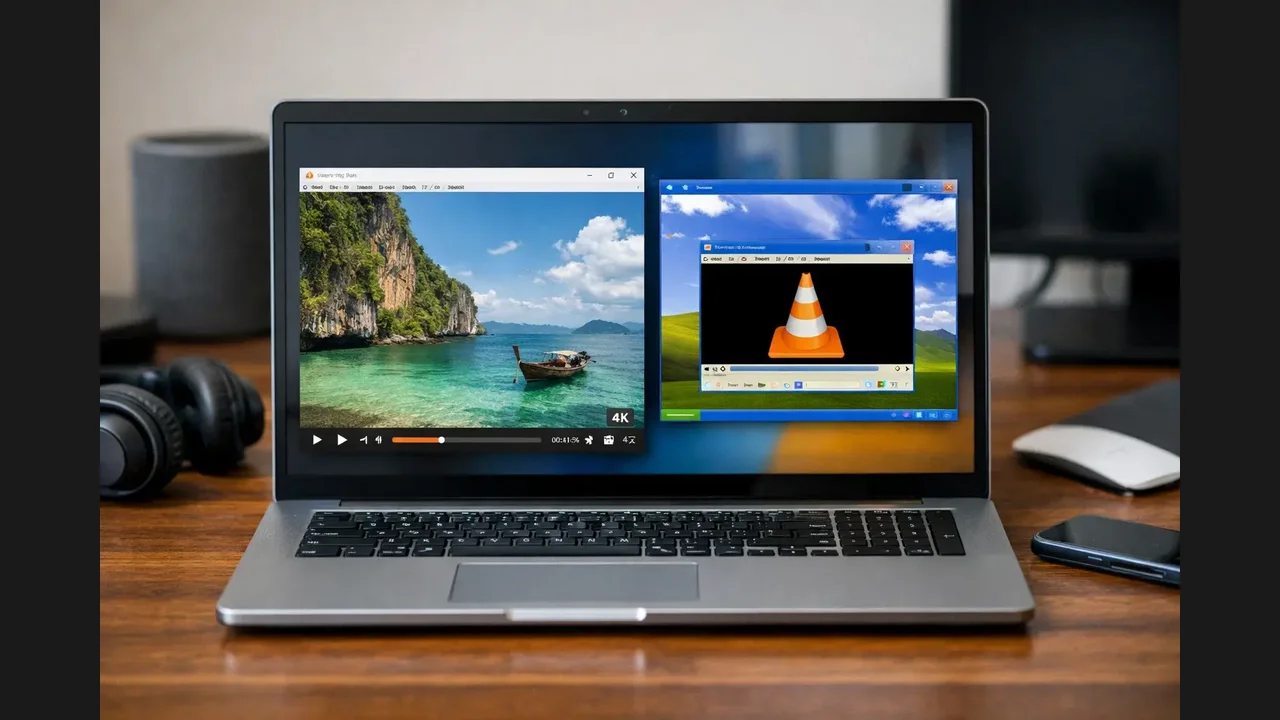
If you are new here, start from the Cinema HQ APK download homepage, then follow this guide. Open Cinema HQ settings and find the player choice. Pick the player you already trust, such as VLC or MX Player, and Cinema HQ will hand playback to it. The built in player stays available, so you can switch back any time without reinstalling anything.
When an external player helps
An external player helps when a format stutters in the built in player, when subtitles behave better elsewhere, or when you prefer a player gesture set you already know. If a title plays badly everywhere, the source or the connection is the problem, and no player will save it. The live TV setup guide covers the next step in detail.
Keep both players ready
Keep the built in player as the fallback and one external player as the specialist. Trying a title in the second player takes seconds, and it is the fastest diagnostic in the whole app: if it plays there, the first player was the issue. For a related setup, see anime browsing.
Quick Answers
Which external player is best for Cinema HQ?
VLC and MX Player are the common choices, and both work well. The best one is the one you already know.
Do I need an external player?
No. The built in player handles most titles. An external player is a fallback for awkward formats.
Can I switch back to the built in player?
Yes, in settings, any time. The choice is not permanent.