
Cinema HQ Guide
Cinema HQ Live TV: Channels, Playlists and Guides
Use Cinema HQ live TV: built in channels, your own playlists, and programme guide data explained.
 By Maria Reyes · Streaming App Reviewer
Start with built in channels
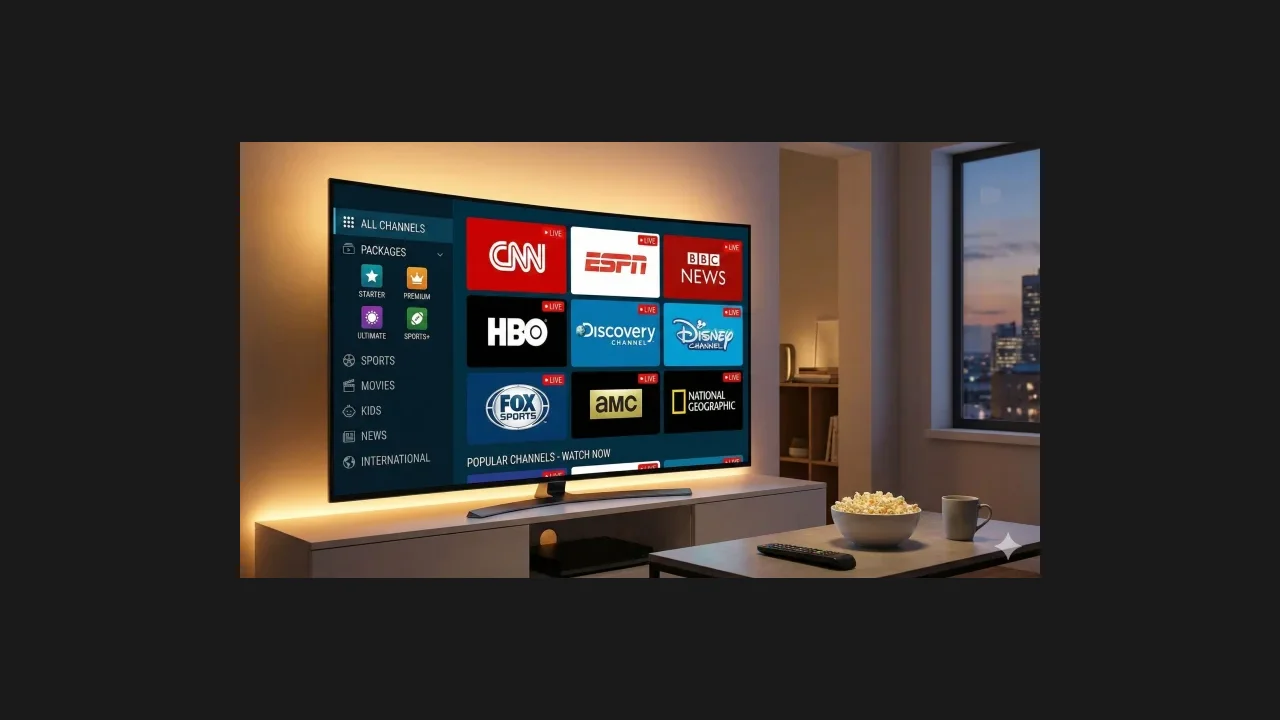
If you are new here, start from the Cinema HQ for Firestick homepage, then follow this guide. Open the live TV section and browse the built in channels first. Channels are grouped by category, and playback works like any other title: pick a channel, pick a source if more than one is offered, and watch. If a channel fails, try another channel before changing settings, since live sources change often.
Add your own playlist
If you have a playlist from a legal provider, add it in the live TV section with an M3U link or an Xtream Codes login. The playlist channels join the section, and guide data appears where the provider supplies it. Keep the playlist details private, and do not share logins in screenshots or messages. The anime browsing guide covers the next step in detail.
When the guide is empty
An empty guide usually means the playlist provider supplies no guide data, not that the app is broken. Channels still play. If guide data matters to you, ask your playlist provider about it, or use a provider that supplies an electronic programme guide. For a related setup, see retro games section.
Quick Answers
Does Cinema HQ have live TV?
Yes, with built in channels and support for your own playlists.
What is an M3U playlist?
It is a playlist file or link from a provider that lists live channels. Cinema HQ can load it in the live TV section.
Why is my programme guide empty?
Guide data comes from the playlist provider. Without it, channels play but show no programme info.