Cinema HQ Guide
Cinema HQ on Android TV: Setup for the Big Screen
Set up Cinema HQ on Android TV and Google TV, with remote navigation tips and a first session plan.
 By Maria Reyes · Streaming App Reviewer
Install it the TV way
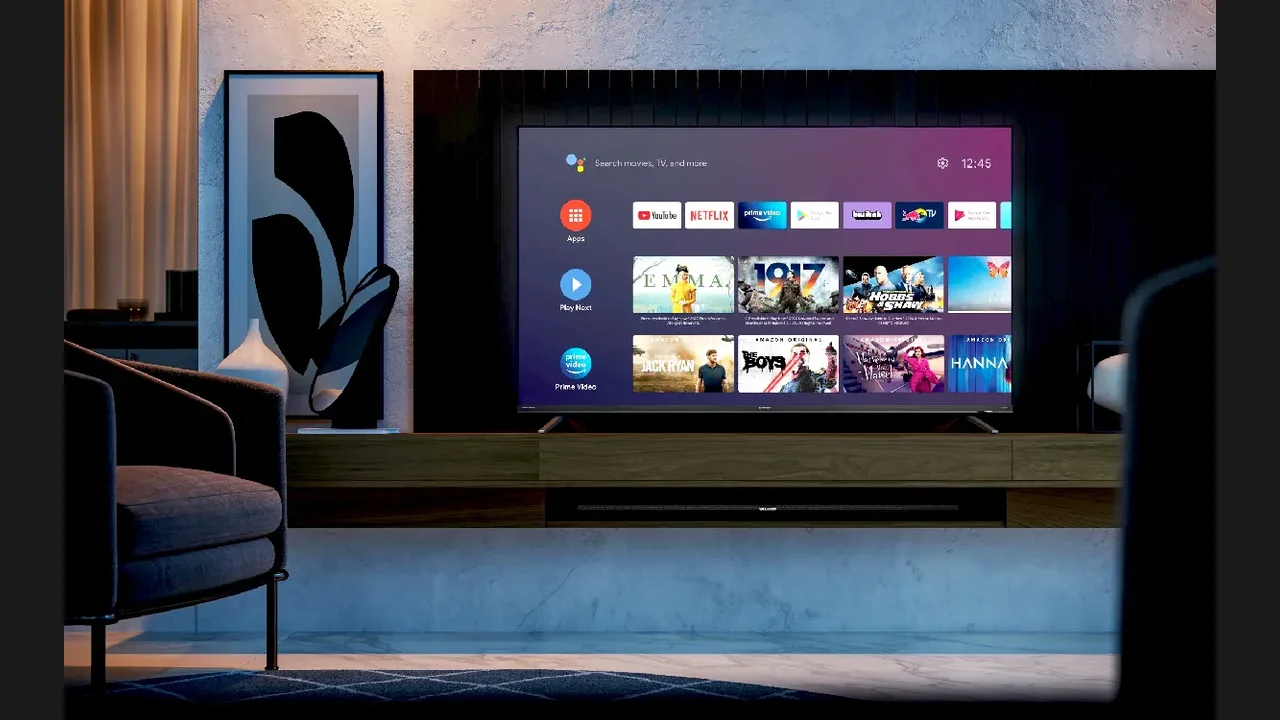
If you are new here, start from the Cinema HQ download homepage, then follow this guide. Android TV installs Cinema HQ by sideloading: fetch the file with a downloader app or send it from your phone, allow installs from that source, and install. The rows and menus are designed for a remote, so the big screen is where the app feels most natural. After install, open the app from the apps row and let the home screen build.
Make the remote work for you
Use the directional pad to move across rows and the select button to open titles. Long presses and the back button do most of the work; the settings menu holds player choice, subtitle defaults and source options. Spend five minutes in settings before your first long session, and set the default player to the one you trust. The Real-Debrid setup guide covers the next step in detail.
Add your live TV playlist
If you have a playlist from a legal provider, add it in the live TV section with your M3U link or Xtream Codes login. Guide data appears where the provider supplies it. A playlist without guide data still plays; it simply shows channels without programme info. For a related setup, see Trakt sync guide. The file itself is on the download page.
Quick Answers
Does Cinema HQ work on Google TV?
Yes. Google TV devices install Android apps by sideloading, and the TV interface works with a remote.
Which player is best on Android TV?
The built in player works for most titles. If a format stutters, switch to an external player in settings.
Can I use a phone as a remote?
Your TV remote is the natural control. Phone remote apps vary by TV maker and are not needed for Cinema HQ.