
Cinema HQ Guide
How to Update Cinema HQ Without Losing Anything
Update Cinema HQ safely: install over the old build, keep Trakt in sync, and avoid data loss.
 By Maria Reyes · Streaming App Reviewer
Install over, never wipe first
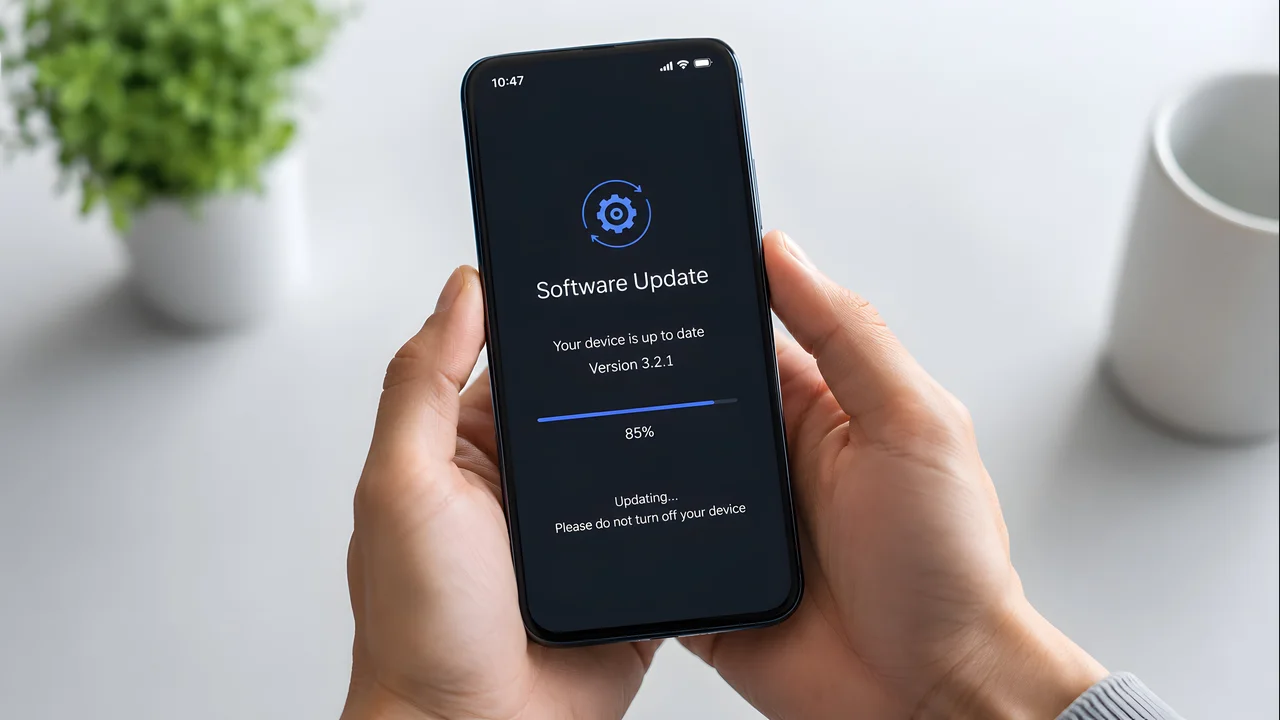
If you are new here, start from the Cinema HQ home screen homepage, then follow this guide. When an update notice appears, follow it and install over the existing app. Installing over the top keeps local settings in place. Do not clear app data before updating, or you will lose local history and saved titles on that device.
Let Trakt carry your history
With Trakt connected, your watchlist and progress sync back after the update, even if something goes wrong locally. Link Trakt before updating if you have not already, and give sync a minute after the update before panicking about a missing list. The watchlist habits guide covers the next step in detail.
If no notice appears
If the app shows no update notice and you know a newer build is out, download the current file from the download page and install it over the existing app the same way. The same rule applies: over the top, never wipe first. For a related setup, see first evening plan. The file itself is on the download page.
Quick Answers
How do I update Cinema HQ?
Follow the in app update notice, or install the current file from the download page over the existing app.
Will updating delete my watchlist?
Not if you install over the old build, and Trakt sync protects it further. Clearing data before updating is what loses it.
Why is there no update in a store?
Cinema HQ is not on Google Play, so updates arrive in app or as a fresh file, not through a store.